
Podcast clips
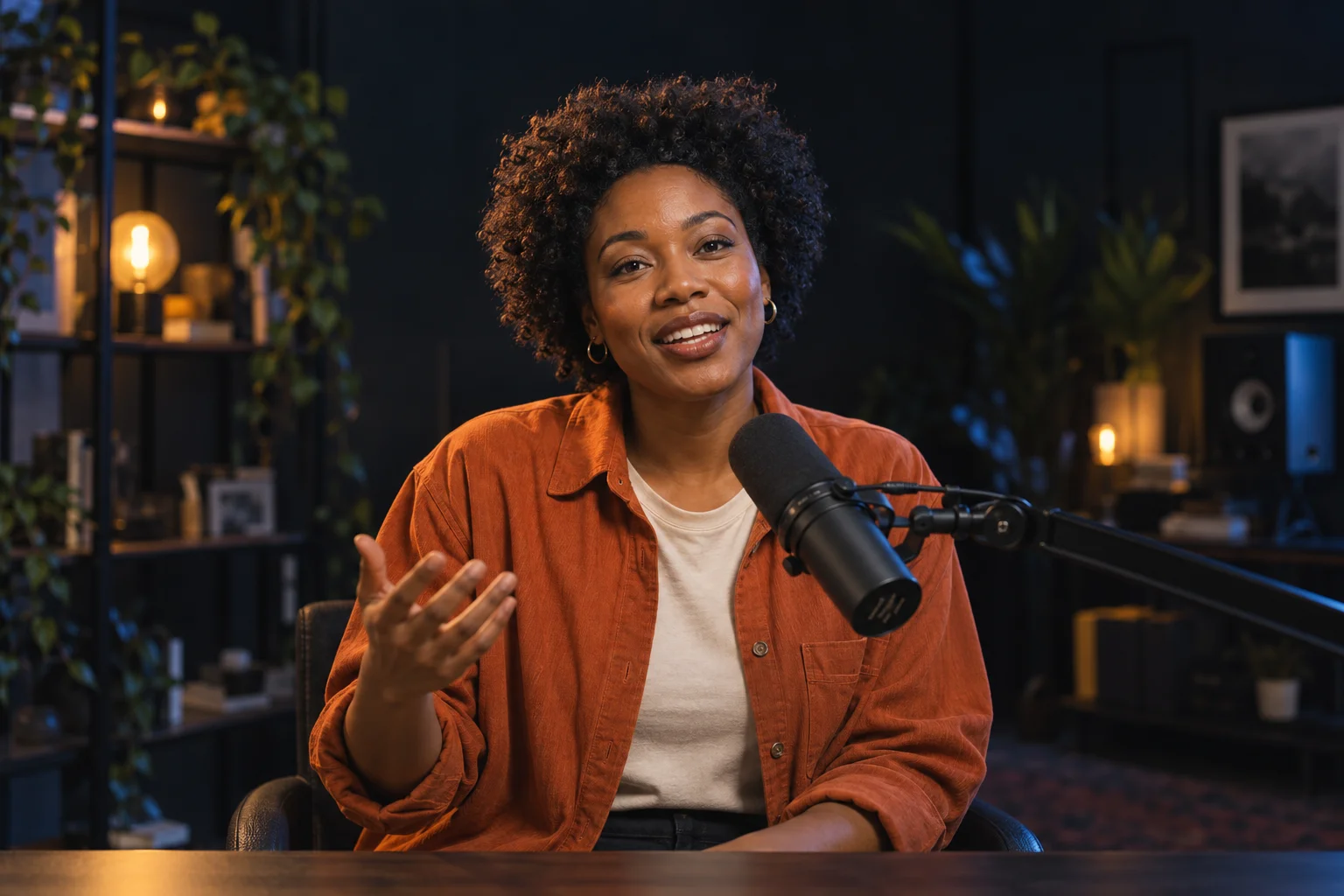
Turn one complete answer or exchange into a short clip. Keep enough of the question so a new viewer understands it.
Paste a YouTube video link. Find highlights, add captions, and turn a long video into short clips.
Use a link to a video you own or have permission to edit.
 One video.
 9:16
9:16Example layout
Open the YouTube video, copy its link, and paste it above. Use the video’s watch or share link so the app can identify the recording.
Review AI-suggested clips or select your own start and end points. For a tutorial, keep the question and its answer together.
Check the captions, crop to a vertical 9:16 frame, and export. Upload the finished file to YouTube Shorts or another social account yourself.
Turn one complete answer or exchange into a short clip. Keep enough of the question so a new viewer understands it.
Share one useful step or demonstration. Check that any text or screen recording stays readable after the vertical crop.
Choose a clear point, reaction, or story. Review the start and ending so the clip does not change the speaker’s meaning.
You can select different moments from a supported recording and export separate clips. The number of useful highlights depends on the video and the section analyzed.
For a supported, accessible video, start with its YouTube link. If link import is unavailable, you can use a video file you already own in the app’s upload flow.
Not every video is accessible to the importer. A link that opens in your signed-in browser may still fail. Use an accessible recording or upload your own copy.
No. Download your finished clips and upload them to your channel yourself. Review the captions, framing, and content before posting.